2009年10月14日星期三

CentOS PXE server setup.

Here we use FTP server.
1. Install DHCP server
yum install dhcp
vi /etc/dhcpd.conf
We can use /usr/share/doc/dhcp-3.0.5/dhcpd.conf.sample as an example or check my last post.
2. Install TFTP server
yum install tftp-server
vi /etc/xinetd.d/tftp
change the line to be: disable = no
3.Create Network installation source
yum install vsftpd
mkdir –p /var/ftp/install/centos/x86_64/5.3/
mount –t iso9660 -o loop CentOS-5.3-x86_64-bin-DVD.iso /media/cdrom/
cp –avr /media/cdrom/* /var/ftp/install/centos/x86_64/5.3/
4.start the DHCP,TFTP, VSFTP servers
/etc/init.d/dhcpd restart
/etc/init.d/xinetd restart
/etc/init.d/vsftpd restart

5. Setup tftp boot files
cp /usr/lib/syslinux/pxelinux.0 /tftpboot
mkdir –p /tftpboot/images/centos/x86_64/5.3/
cp /var/ftp/install/centos/
x86_64/5.3/images/pxeboot/vmlinuz images/centos/x86_64/5.3/
cp /var/ftp/install/centos/x86_64/5.3/images/pxeboot/initrd images/centos/x86_64/5.3/
6.Create PXE menu
cp /usr/lib/syslinux/menu.c32 /tftpboot
mkdir /tftpboot/pxelinux.cfg
touch /tftpboot/pxelinux.cfg/default
vi /tftpboot/pxelinux.cfg/default
This is a concise version. More details can be found through here.

Ubuntu PXE boot server setup.

Here I use HTTP server for the PXE boot.
1. Install Ubuntu 9.04 server.
2. Install DHCP server and modify the configure file.
apt-get install dhcp3-server
vi /etc/dhcp3/dhcpd.conf

The new dhcpd.conf should look like:
option domain-name-servers 145.253.2.75, 193.174.32.18;

default-lease-time 86400;
max-lease-time 604800;

authoritative;

subnet 192.168.0.0 netmask 255.255.255.0 {
range 192.168.0.10 192.168.0.49;
next-server 192.168.0.1;
filename "pxelinux.0";
option subnet-mask 255.255.255.0;
option broadcast-address 192.168.0.255;
option routers 192.168.0.1;
}

2. Install TFTP server
apt-get install tftpd-hpa
vi /etc/default/tftpd-hpa

change the line to be: RUN_DAEMON=”yes”

mount -t iso9660 -o loop Ubuntu-install.iso /media/cdrom/

cp -r /media/cdrom/netboot/* /var/lib/tftpboot/

vi /var/lib/tftpboot/pxelinux.cfg/default

3.Install APACHE2 server:

apt-get install apache2

mkdir -p /var/www/install/ubuntu/9.04/

cp -r /media/cdrom/* /var/www/install/ubuntu/9.04/

4. Start all the servers

/etc/init.d/dhcpd restart

/etc/init.d/tftpd-hpa restart

/etc/init.d/apache2 restart

Now, we can install the ubuntu 9.04 through 192.168.0.1.

Notice: when the installation comes to select a mirror, go to the first line and input the server information for 192.168.0.1.

2009年9月12日星期六

Ubuntu 8.04下ppstream的安装

早就听说ppstream出了linux版本,一直没有尝试。今天终于有空试一下,这里的Linux版本是Ubuntu 8.04(Hardy Heron),现在虽然9.04已经出来了,不过觉得这个版本还是用得比较舒服,也就懒得升级。
闲话少说,最开始是在ppstream官网上下载了安装包,的确能用,但是没有给playlist,就那么几个片子,很是无聊。于是google了一下,ubuntu论坛上讨论了安装Totem插件的形式,可以参考这个连接http://forum.ubuntu.org.cn/viewtopic.php?f=74&t=223582&start=0。实际上可以到:http://people.freedesktop.org/~jinghua/distfiles/gst-plugins-pps-0.0.15.12.tar.gz下载打包好的几个Deb安装文件。可惜的是,在湛卢的机器上安装后,又由Totem自动搜索安装了ffmpeg等软件包,还是不能播放rmvb格式的url。
后来想到6park上有人贴过比较详细的安装笔记,赶紧上去看看,找到了链接:http://pop.6park.com/know1/messages/32181.html。按照此文的方法,本想安装Totem插件,于是先安装了git,再
#git clone git://anongit.freedesktop.org/~jinghua/gst-plugins-pps,
可惜运行到
#./autogen.sh
的时候出错了,原来缺少好几个包,automake, libtool, gstreamer开发程序包,于是逐一apt-get install。最后都安装好了,于是
#./configure --prefix=/usr
#make
#sudo make install
可惜的是运行的时候还是说没有RealMedia的codecs。于是又google了一下,似乎大家都说要安装w32codecs,可惜现在这个包已经是找不到了。
还好,http://pop.6park.com/know1/messages/32181.html上面还介绍了mplayer下面的安装,这里不再详细叙述,就是下载http://ppshell.googlecode.com/files/pps-mplayer_install.tar.gz,然后解压、安装。
为了更方便可以下载http://ppshell.googlecode.com/files/ppshell.py,然后chmod +x ppshell.py 然后在命令行运行 ./ppshell.py,

使用方法:


进入菜单后,

1. 输入数字进入对应选项的子菜单,或者选择某个视频并显示其tvod地址(并添加到playlist.txt中)
2. b 返回上一级菜单
3. r 刷新当前级菜单的临时缓存
4. p 调用pps播放playlist.txt列表中的视频
5. a 将当前菜单中的所有视频添加到播放列表(在分类菜单中无效)
6. s 搜索视频,格式为 "s 搜索字符串",支持正则表达式

这样就可以在命令行下面使用ppstream。

2009年8月26日星期三

MSN under Windows XP 64bit.

1) Download the full installer from Microsoft:
http://download.live.com/?sku=messenger

It should be named "wlsetup-all.exe" (not the web version "wlsetup-web.exe), try several times then you will get it.

2) Use this patcher at your own risk :-) I tried it and works..

http://oss.netfarm.it/wlm.php

3) Launch the patched installer

4) Enjoy...
Source(s):
http://www.techspot.com/blog/129/how-to-run-windows-live-messenger-on-windows-xp-x64/

http://oss.netfarm.it/wlm.php

2009年8月3日星期一

PC MAN X简单设置。

访问简体中文bbs网站:
1.编辑-个人偏好设置-站点设置
将站点编码改为GBK

2.查看-字型 里面重新选个字体
Wenquanyi Zen Hei Mono似乎比较漂亮。

3.可以登录如瀚海星云、未明空间、水木清华等网站了。

2009年7月28日星期二

linux批处理(二)

对一批目录中的某个文件进行相同操作。
for workdir in `cat final.txt`
do
awk '$0~/\./' $workdir/Z0.dat > raw.dat
#读入坐标及其计算结果,因为这些值都是实型,所以只需读入包含小数点的行即可。
./a.out
cp outer.dat $workdir/
done

列出某个目录下所有子目录名称

最简单的方式:
find /somepath -type d
如果要存到某个文件中:
find /somepath -type d > directory.txt
然后去掉不需要保留的部分:
awk '$0~/D/' directory.txt > temp
awk '$0~/ro/' temp > workdir.txt
rm temp

另外一个选择:
du /somepath > directory.txt
awk '$0~/D/' directory.txt > temp1
awk '$0~/ro/' temp1 > temp2
cut -b 6- temp2 > workdir.txt # 这里要检查前面的字段长度,因为du会把文件夹大小写在目录前。
rm temp1
rm temp2

Tecplot Macro范例

众所周知,Tecplot处理数据功能强大,同时它提供了一种Macro模式,如果需要进行大量重复性的工作,学习一点Macro的语法是很有必要的。其实,Tecplot本身提供了记录Macro的命令。下面的Macro就是按照它记录下来之后,稍加修改而成。这里很重要的一点是变量|macrofilepath|的使用,它代表了Macro所在的目录,如果数据和它放在同一个目录,但是Tecplot调用Macro的时候出现错误,找不到相关数据文件,那就必须按照下面这个例子,把|macrofilepath|加到相应的位置。
#!MC 1200
$!READDATASET '"|macrofilepath|\wall_tec.dat" '
READDATAOPTION = NEW
RESETSTYLE = YES
VARLOADMODE = BYNAME
ASSIGNSTRANDIDS = YES
INITIALPLOTTYPE = CARTESIAN3D
VARNAMELIST = '"X" "Y" "Z" "wall-shear" "pressure"'
$!GLOBALCONTOUR 1 VAR = 5
$!CONTOURLEVELS RESETTONICE
CONTOURGROUP = 1
APPROXNUMVALUES = 15
$!FIELDLAYERS SHOWCONTOUR = YES
$!REDRAWALL
$!CREATESLICEZONEFROMPLANE
SLICESOURCE = SURFACEZONES
FORCEEXTRACTIONTOSINGLEZONE = YES
COPYCELLCENTEREDVALUES = NO
$!WRITEDATASET "|macrofilepath|\Z0.dat"
INCLUDETEXT = NO
INCLUDEGEOM = NO
INCLUDECUSTOMLABELS = NO
ASSOCIATELAYOUTWITHDATAFILE = NO
ZONELIST = [2]
VARPOSITIONLIST = [1-2,4-5]
BINARY = NO
USEPOINTFORMAT = YES
PRECISION = 9
TECPLOTVERSIONTOWRITE = TECPLOTCURRENT

2009年7月26日星期日

Journal files for GAMBIT.

/4c.jou
import step "base020.stp"
/the base case has three volumes
/volume.4 is a torus
volume create radius1 4.25 radius2 0.25 zaxis torus
volume move "volume.4" offset 0 -2.964101615 0
/volume.5 is a brick
volume create width 14 offset 0 -7 0 brick
/volume move "volume.5" offset -7 0 -7
volume subtract "volume.4" volumes "volume.5"
/move volume.4 to the right position
/volume move "volume.4" offset 1 0 0
volume unite volumes "volume.1" "volume.2" "volume.3" "volume.4"
undo begingroup
/mesh process:
/mesh the intersection
edge picklink "edge.34" "edge.38" "edge.33" "edge.37"
edge mesh "edge.37" "edge.33" "edge.38" "edge.34" successive ratio1 1 \
intervals 15
undo endgroup
undo begingroup
/mesh the stenosis
edge picklink "edge.10" "edge.9"
edge mesh "edge.9" "edge.10" successive ratio1 1 intervals 20
undo endgroup
volume mesh "volume.1" tetrahedral size 0.1
window modify invisible mesh
/set the boundary conditions
physics create "inlet1" btype "VELOCITY_INLET" face "face.4"
physics create "outlet2" btype "OUTFLOW" face "face.9"
export fluent5 "4D020c.msh"


/queue.jou
/identifier name "4c" new nosaveprevious
read file "4c.jou"
identifier name "4m" new nosaveprevious
read file "4m.jou"
identifier name "4p" new nosaveprevious
read file "4p.jou"
identifier name "5c" new nosaveprevious
read file "5c.jou"
identifier name "5m" new nosaveprevious
read file "5m.jou"
identifier name "5p" new nosaveprevious
read file "5p.jou"
identifier name "6c" new nosaveprevious
read file "6c.jou"
identifier name "6m" new nosaveprevious
read file "6m.jou"
identifier name "6p" new nosaveprevious
read file "6p.jou"

其中queue.jou仅仅调用文件4c~6p.jou。

TUI journal file in FLUENT.

;Read in the mesh file
file read-case 4D020c.msh
;
grid check
;Grid scale
grid scale 0.003 0.003 0.003
;Define the solver to be utilized
define/models/solver pressure-based
;Enable pressure based solver? [yes]
yes
;Define the material constants.
define/user-defined/interpreted-functions
;UDF Source File Name [""]
non.c
;CPP Command Name ["cpp"]
"cpp"
;virtual machine stack size [10000]
10000
;display assembly code listing? [no]
no
;
;Specify fluid properties and pertinent property models.
define/materials copy
;Material of type []>
fluid
;database-material-name>
water-liquid
define/materials change-create water-liquid
;material name [water-liquid]
water-liquid
;water-liquid is a fluid
;change Density? [no]
yes
;Density methods: (constant ideal-gas incompressible-ideal-gas boussinesq piecewise-line)
;new method [constant]
constant
;value(kg/m3) [998.2]
1050.
;change Cp (Specific Heat)? [no]
no
;change Thermal Conductivity? [no]
no
;change Viscosity? [no]
yes
;new method [constant]
user-defined
;new function ["cell_viscosity"]
"cell_viscosity"
;change Molecular Weight? [no]
no
;change L-J Characteristic Length? [no]
no
;change L-J Energy Parameter? [no]
no
;change Thermal Expansion Coefficient? [no]
no
;change Degrees of Freedom? [no]
no
;change Speed of Sound? [no]
no
;
;Set boundary conditions at inlet.
define/boundary-conditions velocity-inlet
;zone id/name [inlet]
inlet1
;Velocity Specification Method: Magnitude and Direction [no]
no
;Velocity Specification Method: Components [no]
no
;Velocity Specification Method: Magnitude, Normal to Boundary [yes]
yes
;Reference Fram: Absolute [yes]
yes
;Use Profile for velocity Magnitude? [no]
yes
;Use UDF Profile for Velocity Magnitude? [no]
yes
;profile names list: (udf udf)
;profile name ["udf"]
"udf"
;data name ["cell_viscosity"]
"inlet_x_velocity"
;Coordinate System: Cartesian (X, Y, Z)[yes]
yes
;
define/boundary-conditions fluid
;(fluid)
;zone id/name [fluid]
fluid
;material-name [air]: Change current value? [no]
yes
;material-name [air]>
water-liquid
;Specify source terms? [no]
no
;Specify fixed values? [no]
no
;Motion Type: Stationary [yes]
yes
;X-Origin of Rotation-Axis (m) [0]
0
;Y-Origin of Rotation-Axis (m) [0]
0
;Z-Origin of Rotation-Axis (m) [0]
0
;X-Component of Rotation-Axis [0]
0
;Y-Component of Rotation-Axis [0]
0
;Z-Component of Rotation-Axis [1]
1
;Deactivated Thread [no]
no
;Porous zone? [no]
no
;
solve/set/gradient-scheme
;use Green-Gauss Node-Based gradients? [no]
yes
;
solve/set/discretization-scheme mom
;Convective discretization scheme for Momentum (0 1 2 4 6) [0]
;4 means QUICK
4
;
solve/initialze/compute-defaults allzones
;
;Set the convergence criteria.
solve/monitors/residual convergence-criteria
;continuity residual convergence criterion [0.001]
0.000001
;x-velocity residual convergence criterion [0.001]
0.000001
;y-velocity residual convergence criterion [0.001]
0.000001
;z-velocity residual convergence criterion [0.001]
0.000001
;
solve/monitors/residual plot?
;Plot residuals? [no]
yes
;
solve iterate
;Number of iterations [1]
1000
;
;Write settings to a case file.
file write-case-data
;case file name [""]
"4D020c.cas"
;
;Exit fluent.
exit

GUI journal file in FLUENT.

(cx-gui-do cx-activate-item "MenuBar*ReadSubMenu*Case...")
(cx-gui-do cx-set-text-entry "Select File*Text" "4D020c.msh")
(cx-gui-do cx-activate-item "Select File*OK")
(cx-gui-do cx-activate-item "MenuBar*GridMenu*Check")
(cx-gui-do cx-activate-item "MenuBar*GridMenu*Scale...")
(cx-gui-do cx-set-list-selections "Scale Grid*Frame3(Unit Conversion)*DropDownList1(Grid Was Created In)" '( 2))
(cx-gui-do cx-activate-item "Scale Grid*Frame3(Unit Conversion)*DropDownList1(Grid Was Created In)")
(cx-gui-do cx-set-real-entry-list "Scale Grid*Frame1(Scale Factors)*RealEntry1(X)" '( 0.003))
(cx-gui-do cx-set-real-entry-list "Scale Grid*Frame1(Scale Factors)*RealEntry2(Y)" '( 0.003))
(cx-gui-do cx-set-real-entry-list "Scale Grid*Frame1(Scale Factors)*RealEntry3(Z)" '( 0.003))
(cx-gui-do cx-activate-item "Scale Grid*PanelButtons*PushButton1(OK)")
(cx-gui-do cx-activate-item "Scale Grid*PanelButtons*PushButton2(Cancel)")
(cx-gui-do cx-activate-item "MenuBar*FunctionsSubMenu*Interpreted...")
(cx-gui-do cx-activate-item "Interpreted UDFs*PushButton3(Browse)")
(cx-gui-do cx-set-text-entry "Select File*Text" "non.c")
(cx-gui-do cx-activate-item "Select File*OK")
(cx-gui-do cx-set-text-entry "Interpreted UDFs*TextEntry1(Source File Name)" "non.c")
(cx-gui-do cx-activate-item "Interpreted UDFs*PanelButtons*PushButton1(OK)")
(cx-gui-do cx-activate-item "Interpreted UDFs*PanelButtons*PushButton2(Cancel)")
(cx-gui-do cx-activate-item "MenuBar*ModelsSubMenu*Solver...")
(cx-gui-do cx-set-toggle-button "Solver*Table1*Frame3(Gradient Option)*ToggleBox3(Gradient Option)*Green-Gauss Node Based" #f)
(cx-gui-do cx-activate-item "Solver*Table1*Frame3(Gradient Option)*ToggleBox3(Gradient Option)*Green-Gauss Node Based")
(cx-gui-do cx-activate-item "Solver*PanelButtons*PushButton1(OK)")
(cx-gui-do cx-activate-item "MenuBar*DefineMenu*Materials...")
(cx-gui-do cx-activate-item "Materials*Table1*Frame1*Frame3*ButtonBox3*PushButton1(Fluent Database)")
(cx-gui-do cx-set-list-selections "Database Materials*Table1*Frame1*Frame1*List1(Materials)" '( 552))
(cx-gui-do cx-activate-item "Database Materials*Table1*Frame1*Frame1*List1(Materials)")
(cx-gui-do cx-set-position "Database Materials" '(x 117 y 511))
(cx-gui-do cx-activate-item "Database Materials*PanelButtons*PushButton1(Copy)")
(cx-gui-do cx-activate-item "Database Materials*PanelButtons*PushButton1(Close)")
(cx-gui-do cx-set-real-entry-list "Materials*Frame2(Properties)*Table2(Properties)*Frame4*Frame2*RealEntry3" '( 1050))
(cx-gui-do cx-set-list-selections "Materials*Frame2(Properties)*Table2(Properties)*Frame10*Frame2*DropDownList1" '( 11))
(cx-gui-do cx-activate-item "Materials*Frame2(Properties)*Table2(Properties)*Frame10*Frame2*DropDownList1")
(cx-gui-do cx-activate-item "User-Defined Functions*PanelButtons*PushButton1(OK)")
(cx-gui-do cx-activate-item "Materials*PanelButtons*PushButton1(Change/Create)")
(cx-gui-do cx-activate-item "Materials*PanelButtons*PushButton1(Close)")
(cx-gui-do cx-activate-item "MenuBar*DefineMenu*Operating Conditions...")
(cx-gui-do cx-activate-item "Operating Conditions*PanelButtons*PushButton1(OK)")
(cx-gui-do cx-activate-item "MenuBar*DefineMenu*Boundary Conditions...")
(cx-gui-do cx-set-list-selections "Boundary Conditions*Table1*Frame1*List1(Zone)" '( 1))
(cx-gui-do cx-activate-item "Boundary Conditions*Table1*Frame1*List1(Zone)")
(cx-gui-do cx-activate-item "Boundary Conditions*PanelButtons*PushButton1(OK)")
(cx-gui-do cx-set-list-selections "fluid-2-1*Table3*Table1*DropDownList1(Material Name)" '( 0))
(cx-gui-do cx-activate-item "fluid-2-1*Table3*Table1*DropDownList1(Material Name)")
(cx-gui-do cx-activate-item "fluid-2-1*PanelButtons*PushButton1(OK)")
(cx-gui-do cx-set-list-selections "Boundary Conditions*Table1*Frame1*List1(Zone)" '( 2))
(cx-gui-do cx-activate-item "Boundary Conditions*Table1*Frame1*List1(Zone)")
(cx-gui-do cx-activate-item "Boundary Conditions*PanelButtons*PushButton1(OK)")
(cx-gui-do cx-set-list-selections "velocity-inlet-5-1*Frame4*Frame3(Momentum)*Table1*Table4*DropDownList1" '( 2))
(cx-gui-do cx-activate-item "velocity-inlet-5-1*Frame4*Frame3(Momentum)*Table1*Table4*DropDownList1")
(cx-gui-do cx-activate-item "velocity-inlet-5-1*PanelButtons*PushButton1(OK)")
(cx-gui-do cx-set-list-selections "Boundary Conditions*Table1*Frame1*List1(Zone)" '( 3))
(cx-gui-do cx-activate-item "Boundary Conditions*Table1*Frame1*List1(Zone)")
(cx-gui-do cx-set-list-selections "Boundary Conditions*Table1*Frame1*List1(Zone)" '( 4))
(cx-gui-do cx-activate-item "Boundary Conditions*Table1*Frame1*List1(Zone)")
(cx-gui-do cx-activate-item "Boundary Conditions*PanelButtons*PushButton2(Cancel)")
(cx-gui-do cx-activate-item "MenuBar*ControlsSubMenu*Solution...")
(cx-gui-do cx-set-list-selections "Solution Controls*Table2*Frame1(Discretization)*Table1(Discretization)*DropDownList2(Momentum)" '( 3))
(cx-gui-do cx-activate-item "Solution Controls*Table2*Frame1(Discretization)*Table1(Discretization)*DropDownList2(Momentum)")
(cx-gui-do cx-activate-item "Solution Controls*PanelButtons*PushButton1(OK)")
(cx-gui-do cx-activate-item "MenuBar*InitializeSubMenu*Initialize...")
(cx-gui-do cx-set-list-selections "Solution Initialization*DropDownList1(Compute From)" '( 0))
(cx-gui-do cx-activate-item "Solution Initialization*DropDownList1(Compute From)")
(cx-gui-do cx-activate-item "Solution Initialization*PanelButtons*PushButton1(OK)")
(cx-gui-do cx-activate-item "Solution Initialization*PanelButtons*PushButton1(Apply)")
(cx-gui-do cx-activate-item "Solution Initialization*PanelButtons*PushButton2(Cancel)")
(cx-gui-do cx-activate-item "MenuBar*MonitorsSubMenu*Residual...")
(cx-gui-do cx-set-toggle-button "Residual Monitors*Table1*Frame1(Options)*ToggleBox1(Options)*CheckButton2(Plot)" #f)
(cx-gui-do cx-activate-item "Residual Monitors*Table1*Frame1(Options)*ToggleBox1(Options)*CheckButton2(Plot)")
(cx-gui-do cx-set-real-entry-list "Residual Monitors*Table2*RealEntry11" '( 1e-006))
(cx-gui-do cx-set-real-entry-list "Residual Monitors*Table2*RealEntry17" '( 1e-006))
(cx-gui-do cx-set-real-entry-list "Residual Monitors*Table2*RealEntry23" '( 1e-006))
(cx-gui-do cx-set-real-entry-list "Residual Monitors*Table2*RealEntry29" '( 1e-006))
(cx-gui-do cx-activate-item "Residual Monitors*PanelButtons*PushButton1(Plot)")
(cx-gui-do cx-activate-item "Residual Monitors*PanelButtons*PushButton1(OK)")
(cx-gui-do cx-activate-item "MenuBar*SolveMenu*Case Check...")
(cx-gui-do cx-activate-item "Information*OK")
(cx-gui-do cx-activate-item "MenuBar*SolveMenu*Iterate...")
(cx-gui-do cx-set-integer-entry "Iterate*Table1*Frame2(Iteration)*Table2(Iteration)*IntegerEntry2(Reporting Interval)" 20)
(cx-gui-do cx-set-integer-entry "Iterate*Table1*Frame2(Iteration)*Table2(Iteration)*IntegerEntry1(Number of Iterations)" 1000)
(cx-gui-do cx-activate-item "Iterate*PanelButtons*PushButton1(Apply)")
(cx-gui-do cx-activate-item "MenuBar*WriteSubMenu*Stop Journal")

2009年7月20日星期一

More about sharing folders in VirtualBox.

前面说过在VirtualBox里面共享宿主机的文件夹。这里需要再说两点,因为上次的那条命令:
sudo mount -t shared_folders /path-to-share
并没有放在启动选项里面,所有要么就每次启动之后,用root用户执行一下这条命令,要么把它放入启动。

还有一个问题就是如果输入上面这条命令之后出现如下错误,
/sbin/mount.vboxsf: mounting failed with the error: No such device
有一个解决办法就是先看看
lsmod |grep vboxvfs
的输出,然后再执行
sudo modprobe vboxvfs
如果没有错误提示,再执行
sudo mount -t shared_folders /path-to-share
按照这个方式,可以重新加载共享文件夹。

2009年7月17日星期五

Plot in multiple windows under gnuplot.

gnuplot> set xrange [-1:1]
gnuplot> plot sin(x)
gnuplot> show terminal

terminal type is wxt 0

gnuplot> set terminal wxt 1
Terminal type set to 'wxt'
Options are '1'
gnuplot> plot cos(x)
gnuplot>

2009年6月22日星期一

Share folders in VirtualBox.

Host OS: Windows XP
Guest OS: Ubuntu 9.04
启动VirtualBox,进入Ubuntu之前设置一个文件夹为共享文件夹,例如shared_folder。进入Ubuntu之后,打开一个terminal,输入sudo mkdir /media/windows-share,然后再输入sudo mount -t vboxsf shared_folder /media/windows-share。这样就可以把windows下面的文件夹挂载到Ubuntu里面。

一句题外话,如果输入sudo的时候输出了sudo: unable to resolve host hostname,那就需要对/etc/hosts文件进行修改,把第二行的名字改成hostname,以后就不会再出现警告错误。

2009年3月26日星期四

在VirtualBox中安装ArchLinux(二)

其实接下来的步骤和在实际机器上安装是一样的。
1.安装xorg:
pacman -S xorg
然后安装hwd:
pacman -S hwd
配置xorg: hwd -xa (好像前面提到的一个文章里面有误,他写成了 hwd -ax)

2.安装Alsa:
pacman -S alsa-lib alsa-utils
配置:
alsaconf
调节音量:
alsamixer
加入audio组:
gpasswd -a zhanlu audio
设置开机自动加载:
把/etc/rc.conf最后一行改为:
DAEMONS=(syslog-ng network netfs crond alsa)

3.安装中文字体:
pacman -S wqy-bitmapfont
pacman -S wqy-zenhei

4.安装scim:
pacman -S scim scim-pinyin

5.安装桌面环境:
pacman -S gdm
把/etc/rc.conf最后一行改为:
DAEMONS=(syslog-ng network netfs crond alsa gdm)
安装gnome:
pacman -S gnome
安装gnome终端:
pacman -S gnome-terminal

现在重启就能进入桌面系统了。以后装软件用pacman就好,跟Debian系列里面的apt-get命令一样好用。一句题外话,pacman采用wget断点续传,如果网络有问题,可以把下载进程关掉,然后rm /var/lib/pacman/db.lck,重新下载就行。

2009年3月24日星期二

在VirtualBox中安装Arch Linux(一)

这里是一个简化版的安装指南,如果有时间建议参考Whitehat(白帽子)的著作《Hello ArchLinux 让新手创造出自己的Linux》以及Toy、Ning Bao的著作《打造完美的Linux 桌面 Archlinux 2007.08-2》,这两个都能在网上找到pdf文件。
1.获得ArchLinux镜像
在http://www.archlinux.org/download/里面找一个离自己最近的网站,下载最新的core-iso。典型安装就是刻盘安装,刻录速度一般建议不要超过16倍速。当然也可以直接放在硬盘上安装,不过其中有些技巧,不是初学者能够掌握的。而这里讨论的是在VirtualBox下的安装,这个倒是不用刻盘,直接可以把iso文件当成启动光盘来用。

2.在VirtualBox下面给ArchLinux划分一个空间,详细情况可以参考前面的一个笔记,虽然那里面的例子是给Windows XP划分空间,实际操作大同小异。

3.启动ArchLinuxCD,参考同一个笔记。

4.开始安装,选择安装方式:光盘安装。

5.硬盘分区:
这里给一个分区列表的例子,虚拟机里面一共有8G空间。

/boot 100MB ext2 Primary
swap 512MB swap Primary
/ 2048MB ext3 Primary
/home 3072MB ext3 Logical
/usr other ext3 Logical

把/boot设置成bootable。完成这步保存一下,稍做休息,活动一下筋骨。马上就要正式安装了,相比有点激动吧。

6.选择软件包:
用空格选定软件包,建议最少安装base软件包。选好之后,OK一下就马上安装了,这步大概要十多分钟吧,看机器性能而定。

7.配置系统:
看自己喜好,nano比较简单,不过个人倾向于用vi。主要是修改一下rc.conf, locale.gen, 以及mirrorlist。在rc.conf中,如果用DHCP把原来的eth0那行注释掉,改成:
eth0="dhcp"
如果使用静态IP还需要自己配置一下。
在locale.gen中找到
zh_CN.GB18030 GB18030
zh_CN.GBK GBK
zh_CN.UTF-8 UTF-8
zh_CN.GB2312
去掉前面的#号。
在mirrorlist里面把离自己最近的那个镜像放到第一位,这样以后用pacman的时候就会省很多事情。
还有就是最后要设置一下root的密码。
然后又是OK,开始等待的过程,可以喝点水,吃点东西,洗个澡什么的。

8.安装Grub:
这步非常简单,敲几次回车就好了。

9.重启系统:
看到登陆的界面了,不错!新建一个用户:
useradd -m -s /bin/bash zhanlu
设置密码:
passwd zhanlu

10.更新系统:
先看看网卡是不是配置好:
ping -c 3 www.google.com
如果没有那就要重新配置一下。如果可以的话,运行
pacman -Syu

2009年3月23日星期一

安装Arch Linux的原因

在distrowatch.com上面的Linux有好几百个不同的发行版,它的排名并不是太高。不过从高排名的系统来看,有很大一部分是Debian系列的,其次是Red Hat的衍生物,Arch Linux作为单独的一个分支能排名这么靠前其实也不容易。湛卢之所以选择这个发行版有两方面的原因。第一、Arch Linux属于轻量级的发行版本,和gentoo一样不强迫用户安装一些没有必要的软件包,甚至它都不给用户定义默认桌面管理系统。这对于Linux爱好者来说,很有吸引力,自己可以选择安装任何一种自己喜好的。当然这也是一把双刃剑,对于初学者来说无疑给安装带来了一定的困难,必须自己学习安装配置xorg,然后才能安装桌面管理系统。不过,也不必过于担心,至少可以从网上找到两个关于安装Arch Linux的简明手册,一本是WhiteHat(白帽子)在2007年9月末写的《Hello ArchLinux 让新手打造出自己的Linux》,另一本手册是Toy、Ning Bo在2007年8月写的《打造完美的Linux桌面》。按照这两本手册,即使是初学者,在尝试几次之后也一定能够打造出自己的Linux。第二个原因也非常重要,湛卢一直考虑安装一个类似于gentoo的系统,不过后来从网上看到gentoo的介绍,其中最大的诟病就是安装起来非常耗时,比如说,有人曾经提起光是编译一个KDE就需要9个多小时,这也就使湛卢很早打消了安装gentoo的念头。Arch Linux信奉的哲学是K.I.S.S - Keep It Simple, Stupid。它正好满足了湛卢的各种需要,而且很重要一点就是它有一个很好用的包管理系统pacman,使用起来几乎跟apt-get一样方便,而且软件包比Debian的源更新。而且VT也有Arch Linux的源,这更就坚定了湛卢尝试的决心,目前最新的版本是Arch Linux 2009.2。后来修改了pacman的站点列表,把VT的源放在了第一位,更新软件的速度感觉不是一般的快。

在c中调用gnuplot

在c里面调用gnuplot,可以直接把图形输出到文件:

# surface.c
#include
/*
Author: Ioan Vancea (www.vioan.ro)
*****************************/
int main()
{
FILE *pipe = popen("gnuplot -persist","w");
fprintf(pipe, "set samples 40\n");
fprintf(pipe, "set isosamples 40\n");
fprintf(pipe, "set hidden3d\n");
fprintf(pipe, "set xrange [-8.000:8.000]\n");
fprintf(pipe, "set yrange [-8.000:8.000]\n");
fprintf(pipe, "set zrange [-2.000:2.000]\n");
fprintf(pipe, "set terminal png\n");
fprintf(pipe, "set output 'graph.png'\n");
fprintf(pipe, "set title 'We are plotting from C'\n");
fprintf(pipe, "set xlabel 'Label X'\n");
fprintf(pipe, "set ylabel 'Label Y'\n");
/* fprintf(pipe, "plot 'datafile.dat' using 1:2\n");*/
fprintf(pipe, "splot cos(x)+cos(y)\n");

close(pipe);
return 0;
}


也可以动态显示图形:

# popen.c

#include
#include
#include
#include
#include
#include

#define PANIC(a) do { \
perror(a); \
if (temp_name) unlink(temp_name);\
exit(1);\
} while(0)

int main() {
FILE *command,*data;
char *temp_name;
double a,b;
int i;

if ((temp_name = tmpnam((char *) 0)) == 0) PANIC("tmpnam failed");
if(mkfifo(temp_name, S_IRUSR | S_IWUSR) != 0) PANIC("mkfifo failed");
command = popen("gnuplot","w");
fprintf(command,"plot \"%s\" with lines\n",temp_name); fflush(command);
data = fopen(temp_name,"w");
for (i=0; i<20; i++) {
a = i/10.0;
b = sin(a);
fprintf(data,"%f %f\n",a,b);
}
fclose(data);
fprintf(stderr,"press enter to continue..."); fflush(stderr);
getchar();

fprintf(command,"plot \"%s\" with lines\n",temp_name); fflush(command);
data = fopen(temp_name,"w");
for (i=0; i<20; i++) {
a = i/10.0;
b = cos(a);
fprintf(data,"%f %f\n",a,b);
}
fclose(data);
fprintf(stderr,"press enter to continue..."); fflush(stderr);
getchar();
fclose(command);
unlink(temp_name);
return 0;
}

在LaTeX下面输入中文

以前最流行的一种方式是LaTeX+CJK来输入中文,现在因为有了XeTeX,有一种更简单的方式,那就是用XeLaTeX来编译,可以直接从UTF-8格式的tex文件中输入中文。下面是两个例子:

% sample1.tex

%!TEX encoding = UTF-8 Unicode
\documentclass{article}
\usepackage{amsmath}
\usepackage{fontspec}
\usepackage{xunicode}
\usepackage{indentfirst}
\usepackage{graphicx}
\setromanfont{SimSun}
\XeTeXlinebreaklocale "zh"
\XeTeXlinebreakskip = 0pt plus 1pt minus 0.1pt
\newcommand\Helvetica{\fontspec{Helvetica}}
\newcommand\Times{\fontspec{Times}}
\newcommand\Kai{\fontspec{Kai}}

\begin{document}
\title{{\Times \LaTeX} 测试}
\author{\Times Jie Chen}
\maketitle

\begin{center}
\Kai 摘要
\end{center}

{\small 这是一个摘要}

\section{第一节}
为什么?
\begin{figure}[ht]
\centering
\includegraphics[width=3cm]{1.eps}
\Times \caption{ interesting \Kai 图片 }
\end{figure}

\Times
I am very proud of this.

\begin{equation}
ax+by=3\sqrt{5}
\end{equation}

\end{document}


%!TEX encoding = UTF-8 Unicode
%test.tex
\documentclass[a4paper,12pt]{article}
\usepackage{fontspec}
\usepackage{graphicx}
%全文使用STHeiti
\setromanfont{STHeiti}
%定义一个会用到的英文字体
\newfontinstance{\enfont}{SimSun}
\newcommand{\en}[1]{{\enfont #1}}

%中文断行用的
\XeTeXlinebreaklocale "zh"
\XeTeXlinebreakskip = 0pt plus 1pt minus 0.1pt

\title{编}
%使用某草体
%\author{\cao 报告书ai}
\author{报告书ai}

\begin{document}
\maketitle
\begin{abstract}

\end{abstract}
\section{课}

%使用那个英文字体
\en{
We are english

}

\end{document}

用beamer做幻灯片

下面的例子是在LaTeX环境下,用beamer宏包做幻灯片的最简单的例子。要用beamer这个宏包,当然首先需要安装beamer宏包,同时还需要xcolor,pgf等宏包。

\documentclass{beamer}
% This is the file main.tex
\usetheme{Berlin}
\title{Something very interesting}
\author{Zhan Lu}
\date{\today}
\begin{document}
\begin{frame}
\titlepage
\end{frame}
\section*{Outline}
\begin{frame}
\tableofcontents
\end{frame}
\section{Introduction}
\subsection{Overview of the Beamer Class}
\subsection{Overview of Similar Classes}
\section{Usage}
\subsection{...}
\subsection{...}
\section{Examples}
\subsection{...}
\subsection{...}
\begin{frame}
\end{frame} % to enforce entries in the table of contents
\end{document}

LaTeX中插图入门

在LaTeX下面插图起码有下面epsf,epsfig,graphics三种方式,其中最方便的当属graphics宏包的\includegraphics命令。不过在\caption命令后面好像不能用\url或者是\verb之类的命令,有些朋友说可以在文件最前面加上\usepackage{caption},但是没有成功过。

%%%%%%%%%%%%%%%Inset graphics %%%%%%%%%%%%%%%%%%%%%%%%%%%%
\documentclass[10pt]{report}
\usepackage{epsf}
\usepackage{epsfig}
\usepackage{graphics}
%%%%%%%%%%%%%%%%%%%%%%%%% %%%%%%%%%%%%%%%%%%%%%%%%%
\begin{document}
%
\begin{figure}[htbp]
\epsfysize=8cm \epsfbox{1.eps}
\caption{Use the epsf package}
\end{figure}
%
\begin{figure}[htbp]
\epsfig{file=1.eps, width=10cm, angle=45}
\caption{Use the epsfig package}
\end{figure}
%
\begin{figure}[htbp]
\includegraphics[width=10cm, angle=30] {1.eps}
\caption{Use the graphics package}
\end{figure}
%
\end{document}
%%%%%%%%%%%%%%%%%%%%%%%%%%%%%%%%%%%%%%%%%%%%%%%%%%%

Linux入门书籍

1. Linux Starter Pack

http://www.tuxradar.com/linuxstarterpack

2. Ubuntu Pocket Guide and Reference

http://www.ubuntupocketguide.com/index2.html

3. Linux 101 Hacks eBook

http://www.thegeekstuff.com/linux-101-hacks-free-ebook/

FORTRAN与c/c++混合编程(二)

在c/c++中调用FORTAN子程序。

testC.cpp:
#include <iostream>
using namespace std;
extern "C"
{
void fr1_(int*,int *);
int ff1_(int *);
}

int main()
{
int n=10,nSq,nCube;
fr1_(&n, &nSq);
cout << "The square is:"<< nSq << "\n";
nCube=ff1_(&n);
cout << "The Cube is:"<< nCube << "\n";
return 0;
}

bak.c:
#include <stdio.h>
extern void fr1_(int*,int *);
extern int ff1_(int *);

int main()
{
int n=10,nSq,nCube;
fr1_(&n, &nSq);
printf( "The square is: %d\n", nSq);
nCube=ff1_(&n);
printf("The Cube is: %d\n", nCube);
return 0;
}

testF.f
SUBROUTINE FR1(N,M)
M=N*N
RETURN
END

INTEGER FUNCTION FF1(N)
FF1=N*N*N
RETURN
END
编译:
g77 -c testF.f
gcc -c bak.c
g++ -c testC.cpp
g++ -o testplus testC.o testF.o
gcc -o test bak.o testF.o

两个可执行文件testplus和test得到的结果是一样的。同样也可以写成Makefile简化编译过程,例如:

CXX=g++
F77=g77
OBJS=testF.o testC.o
testplus: $(OBJS)
$(CXX) -o testplus $(OBJS)
.cpp.o:
$(CXX) -c $<
.f.o:
$(F77) -c $<
.PHONY: clean
clean:
-rm testplus *.o

FORTRAN与c/c++混合编程(一)

在很多情况下,有必要用到FORTRAN与c/c++混合编程。下面的例子是在FORTRAN中调用c子程序以及结构。

主程序testF.f
program test
integer ii,jj,kk
common /ijk/ii,jj,kk
real*8 ff
character*32 cc
ii=2
jj=3
kk=4
ff=9.0567
cc='Example of a character string'
write(6,10)ii,ff
10 format('ii= ', i2, ' ff= ', f10.4)
call abc(ii)
write(6,20)ii
20 format('ii= ', i2)
write(6,30)ii, jj, kk
call doubleIJK(cc)
write(6,30)ii, jj, kk
30 format('ii= ', i2, ' jj= ',i2, ' kk= ',i2)
write(6,40)cc
40 format(a32)
stop
end

c文件testC.c
#include <stdio.h>
extern struct
{
int ii,jj,kk;
} ijk_;
int doubleijk_(char *cc, int ll)
{
printf("From doubleIJK: %s\n", cc);
ijk_.ii *=2;
ijk_.jj *=2;
ijk_.kk *=2;
return(1);
}

编译:
gcc -c testC.c
g77 -c testF.f
g77 -o test testC.o testF.o
然后运行./test即可。如果想要简单点的方式也可以写个Makefile:
CC=gcc
F77=g77
OBJS=testC.o testF.o
test: $(OBJS)
$(F77) -o test $(OBJS)
.c.o:
$(CC) -c $<
.f.o:
$(F77) -c $<
.PHONY: clean
clean:
-rm test *.o
需要注意的是Makefile中,command前面是一个“tab”,不能靠敲空格得到。

2009年3月21日星期六

FreeBSD在VirtualBox下不能安装

经过不下十次的尝试,在VirtualBox2.1.4下面安装FreeBSD 7.1没有成功过。后来在VirtualBox最新版本的手册里面找到了它对FreeBSD的支持不好。不过在安装过程中,老是因为不能把iso中的东西拷贝到虚拟系统,每次都停在不同的位置,这倒是很出乎意料之外。错误的信息也有下面几种形式:
第一种:
Unable to transfer the base distribution from acd0
Do you want to try retrieve it again
Yes No

第二种:
Write Failure on transfer (wrote -1 bytes of 1425408 bytes)

第三种是说什么"no dump ... reboot"

2009年3月20日星期五

Linux下文件批量处理

1.把一个文件拷贝到多个目录
方法一:
需要拷贝的文件:file
目标地址:/tmp/folder/*/keys
find . -path "/tmp/folder/*/keys/" -type d -exec cp /tmp/file {} \;
find /tmp/ -path "/tmp/folder/*/keys/" -type d -exec cp /tmp/file {} \;

方法二:
//File to copy
/var/www/html/file.php

//Directories
/var/www/html/domain1.site.com/include
/var/www/html/domain2.site.com/include
/var/www/html/domain3.site.com/include
/var/www/html/domain4.site.com/include
/var/www/html/domain5.site.com/include

Code:
cd /var/www/html
for DIR in *.site.com/include; do cp file.php ${DIR}/; done

2.批量转换文件格式
把一个目录下左右tiff文件转换成jpg格式

for i in *.tiff
do
convert "$i" "${i/.tiff}".jpg;
done

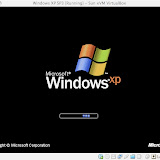
Windows XP SP3 in Virtual Box on MacBook Pro

在VirtualBox中的Windows XP SP3.
Windows XP SP3 in Virtual Box on MacBook Pro

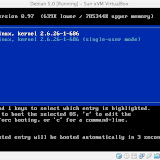
Debian Linux in Virtual Box on MacBook Pro

在VirtualBox中的Debian 5.0
Debian Linux in Virtual Box on MacBook Pro

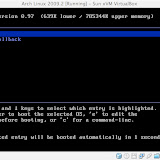
Arch Linux in Virtual Box on MacBook Pro

在VirtualBox中的Arch Linux 2009.2
Arch Linux in Virtual Box on MacBook Pro

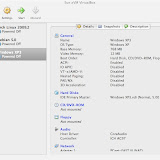
在VirtualBox中安装虚拟操作系统之前的准备工作

下面的相册简单地描述了,在VirtualBox中安装虚拟操作系统的准备工作。

PreInstall an Operation System in VirtualBox on a Ma